
Real result
Scratches and dust on a portrait
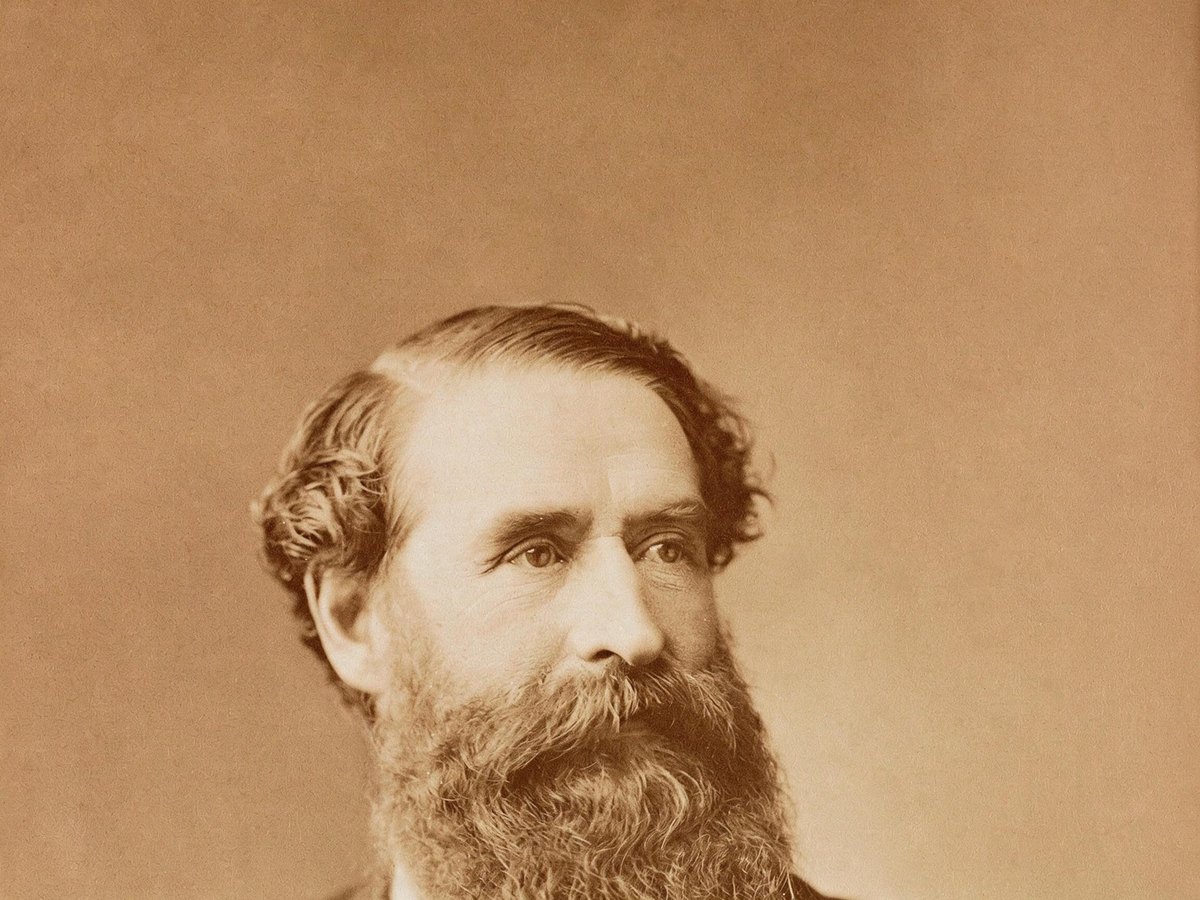
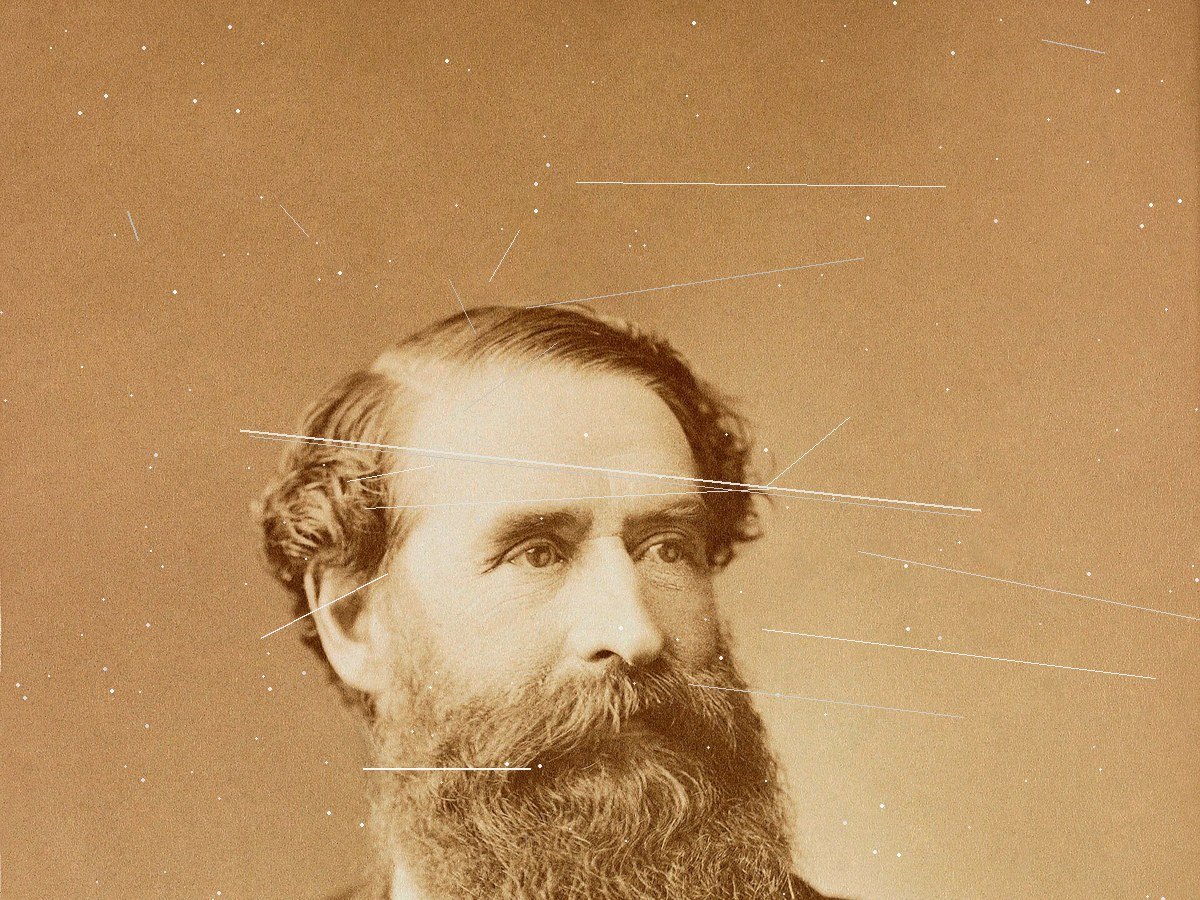
Thin scratches and dust added to a public-domain portrait, one line across the face. The Standard run took them off. The face stayed the same; skin came out slightly smoother.
No account required
Scan or snap an old print and upload it. The AI clears scratches, dust, folds, stains and small tears, and leaves black-and-white or sepia prints in their original tones.
Scratches, a crease and torn corner, stains, a glass plate, and a damaged family group. Every after side is a real Standard result. The first three start from a clean public-domain print with damage we added; the last two were already damaged. Drag the slider and read what changed.
Thin scratches and dust added to a public-domain portrait, one line across the face. The Standard run took them off. The face stayed the same; skin came out slightly smoother.
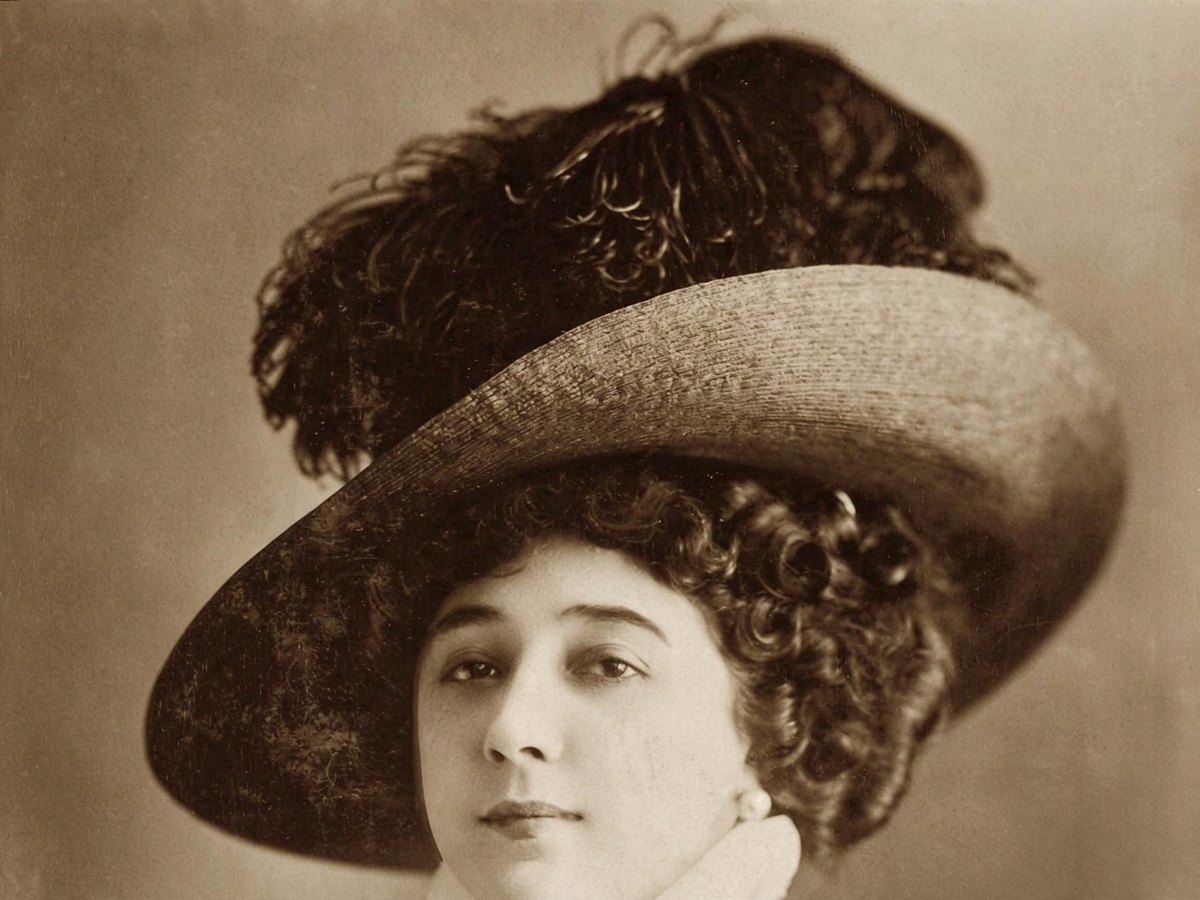
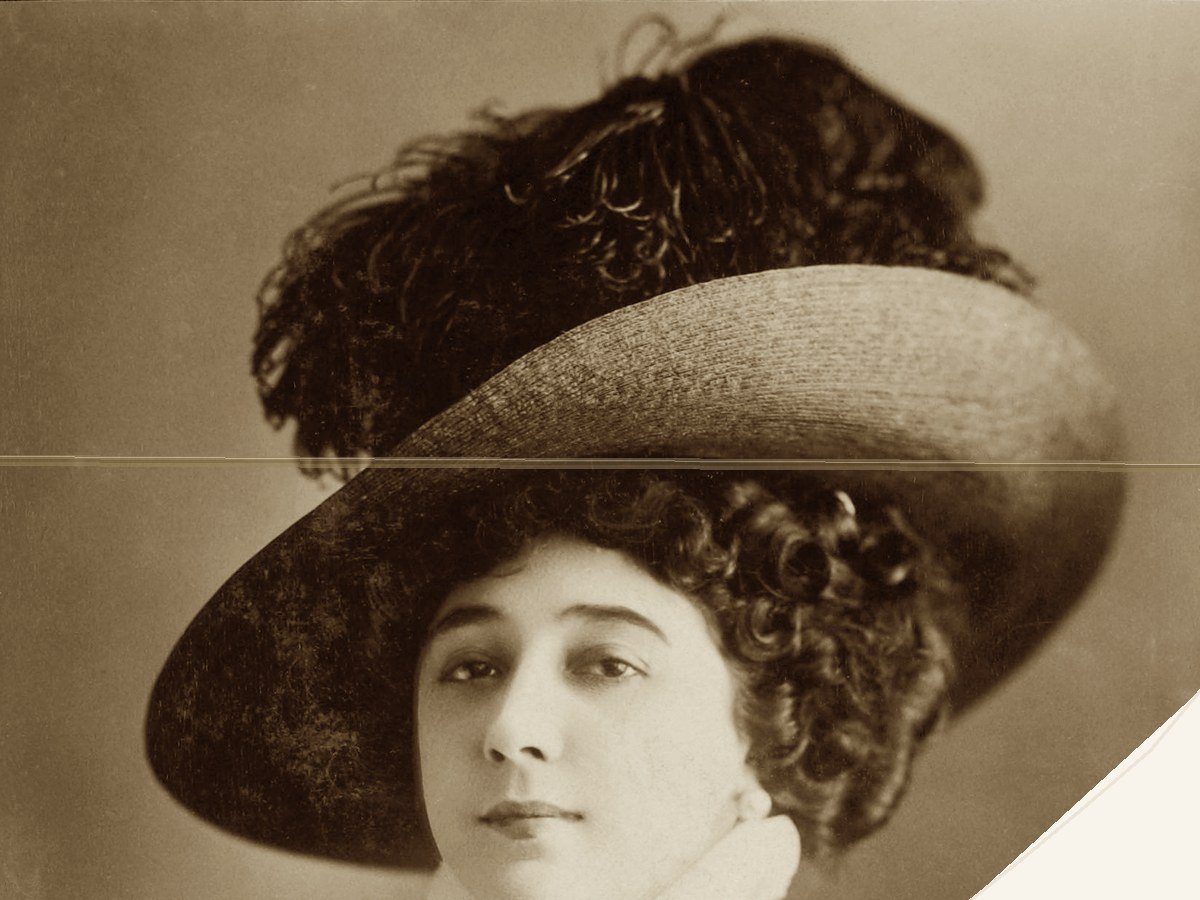
A crease across a sepia print and a corner cut to paper-white. The Standard run removed the crease and drew in the missing hat brim. That brim is a guess.
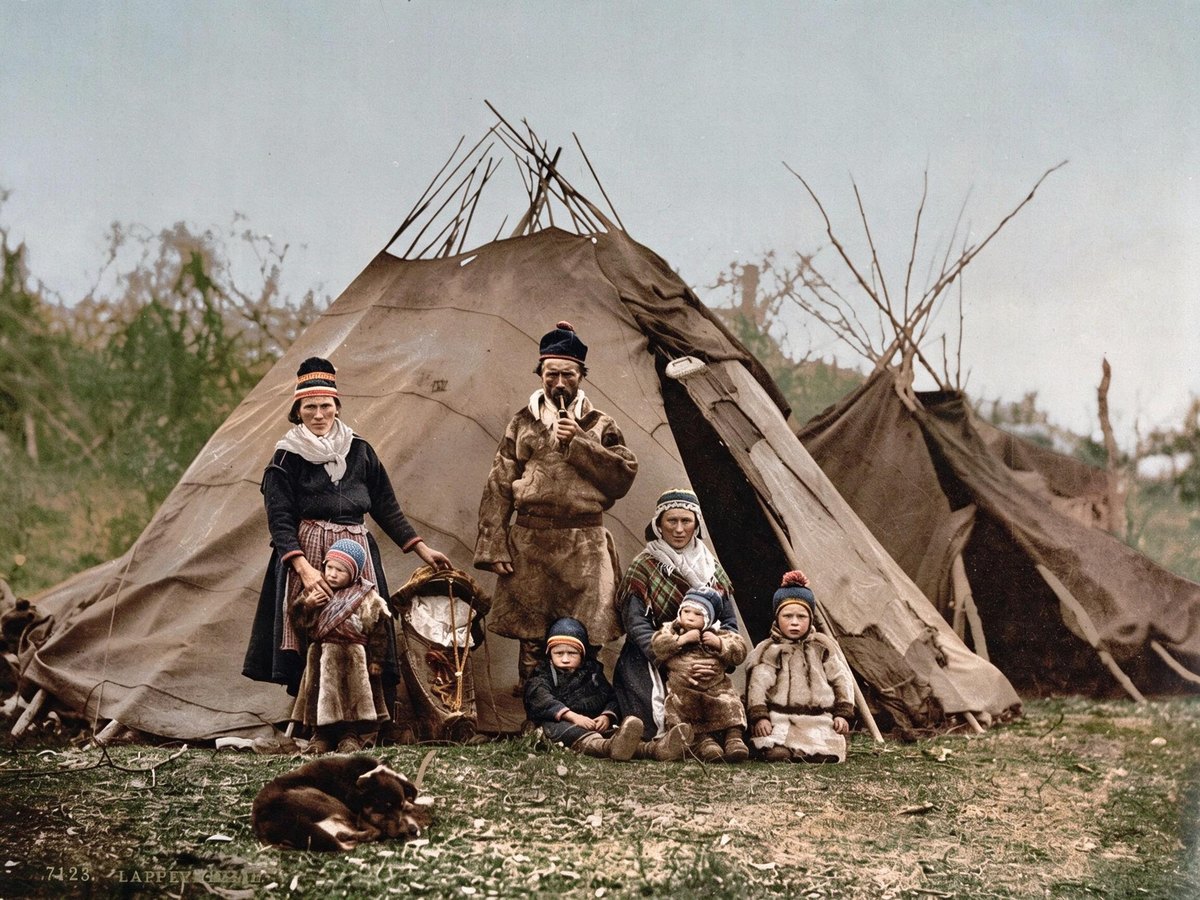
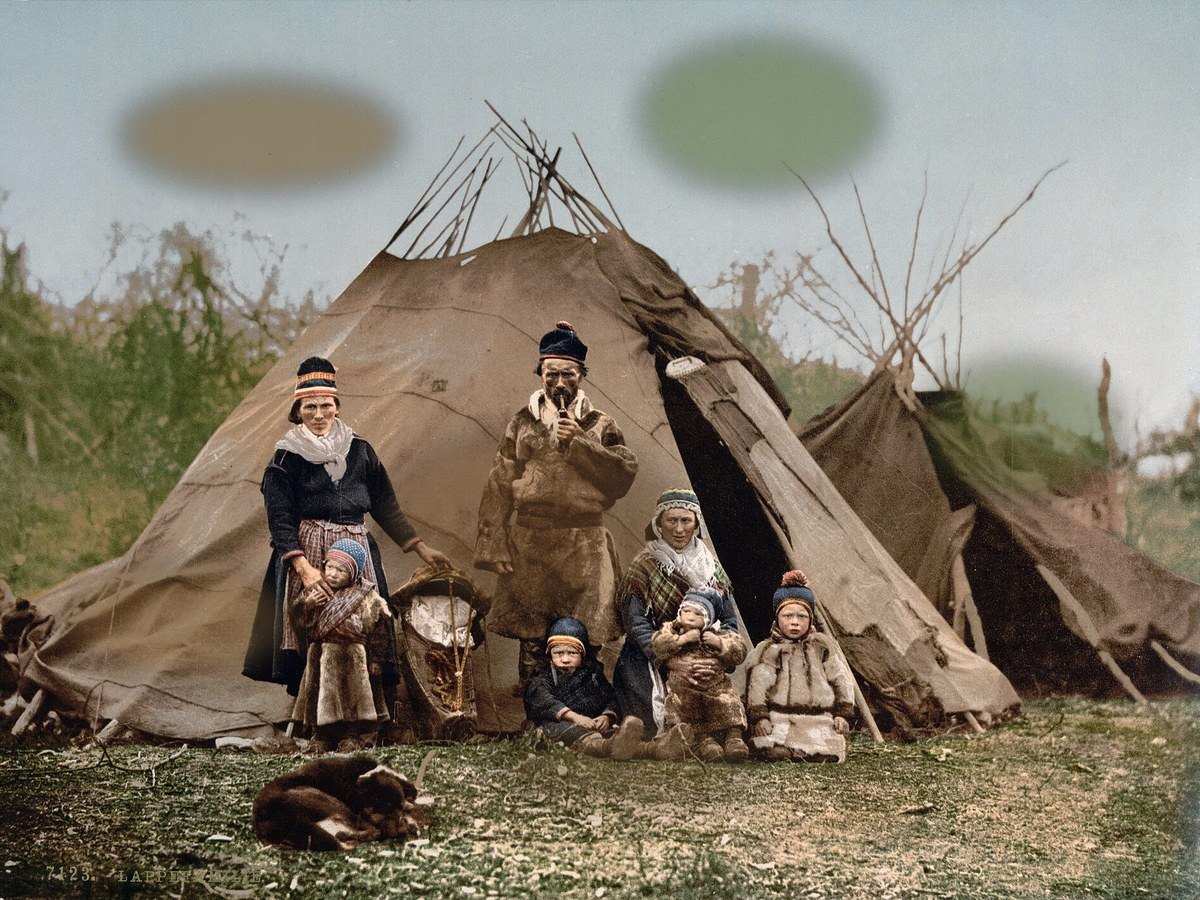
Mold-like stains added to a public-domain group scan. The Standard run took them off, and the small faces stayed close to the original. Check every face on your own run.
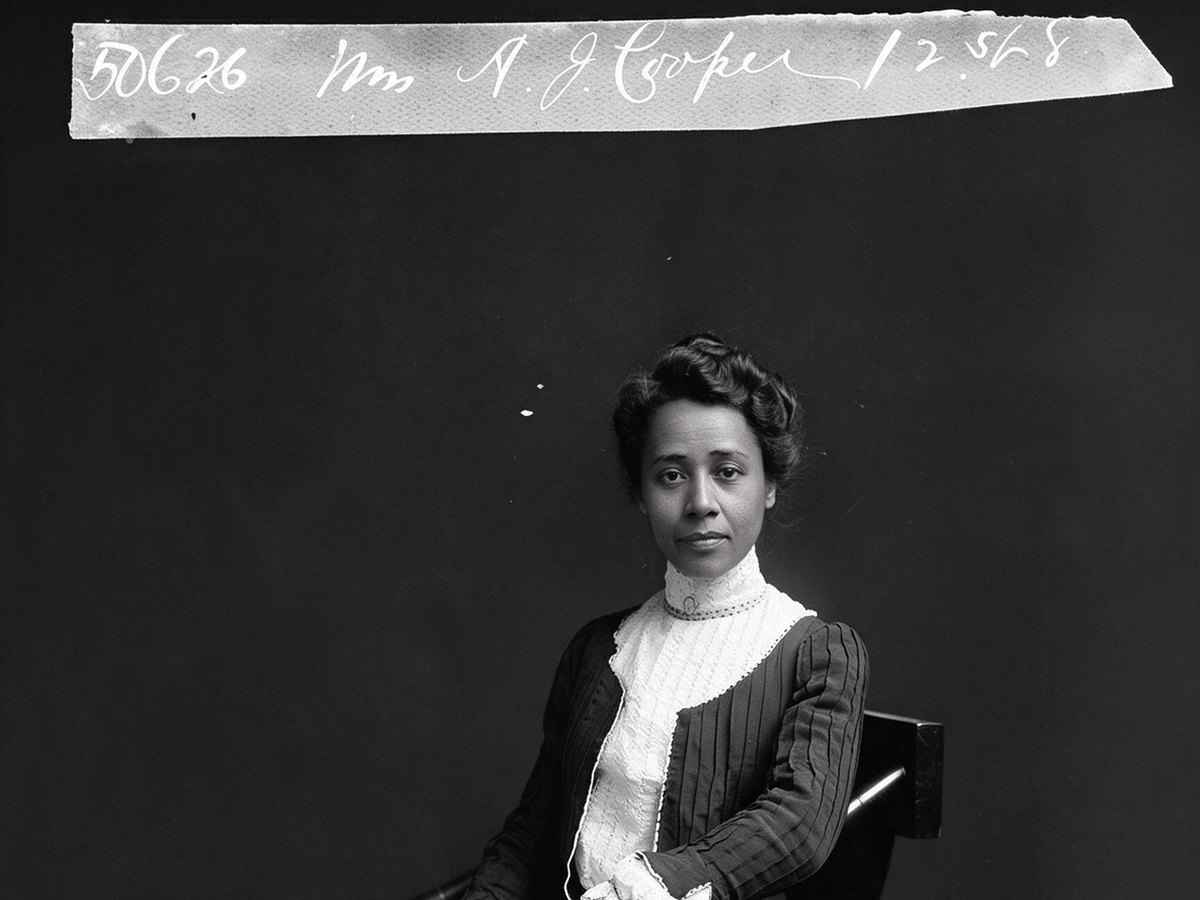
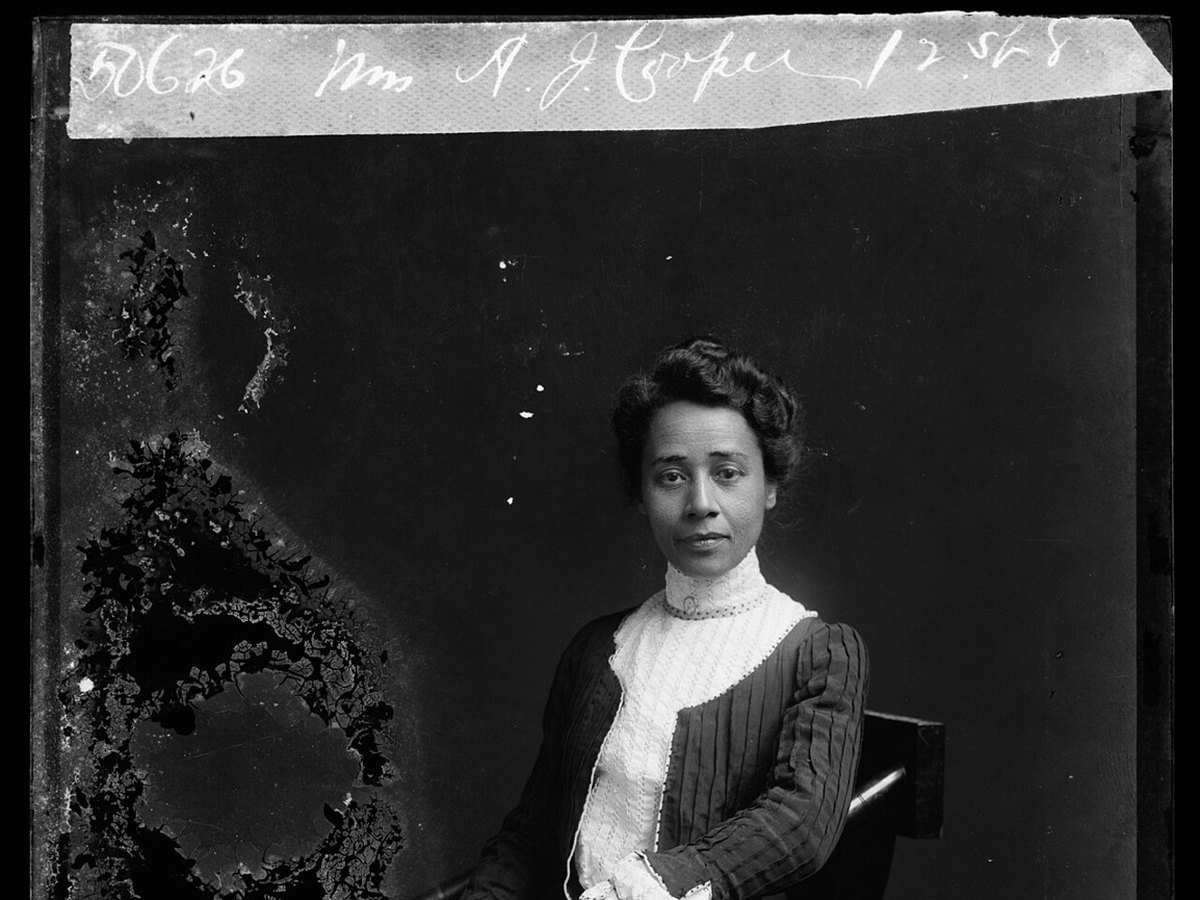
A real 1900s glass plate with flaking emulsion. The Standard run cleared the flaking. The face and the handwritten caption stayed the same, and the dark scan border was trimmed.
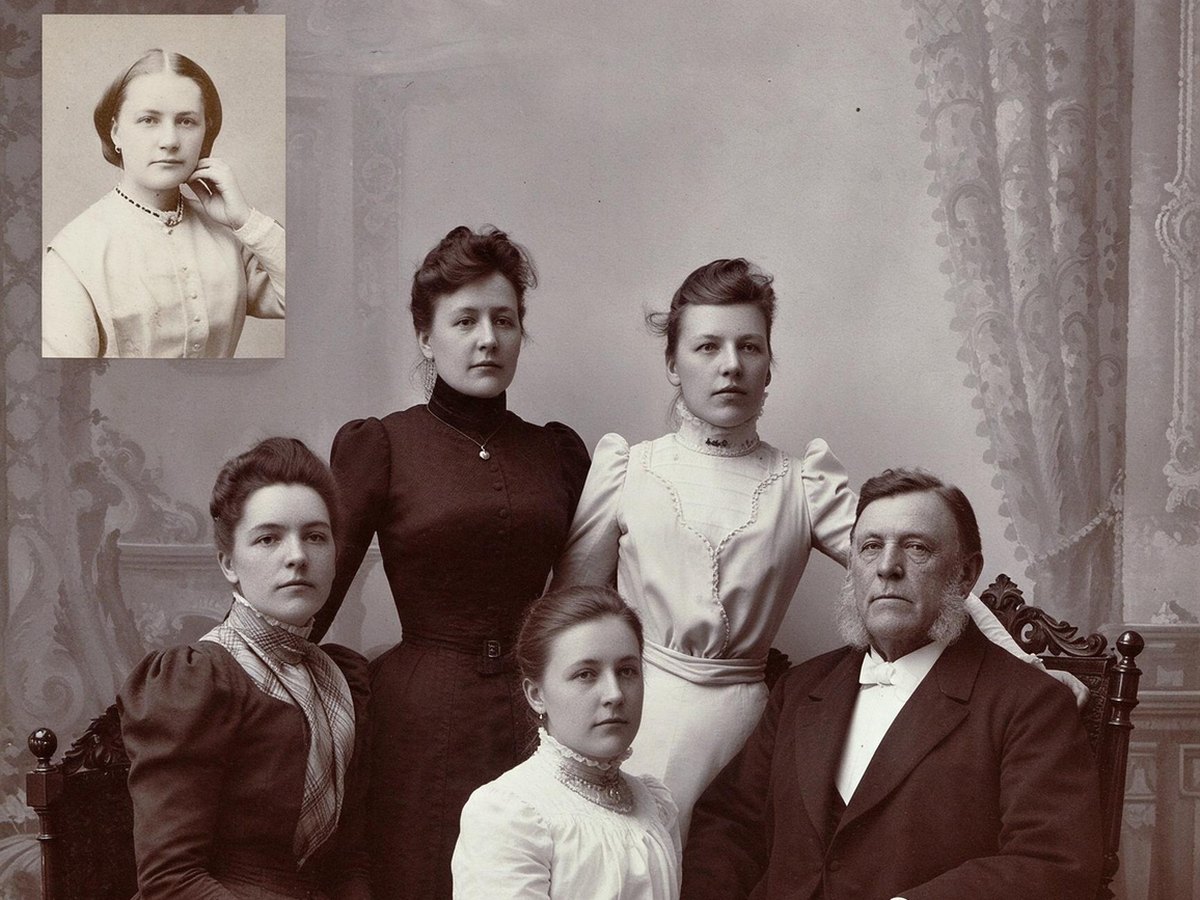
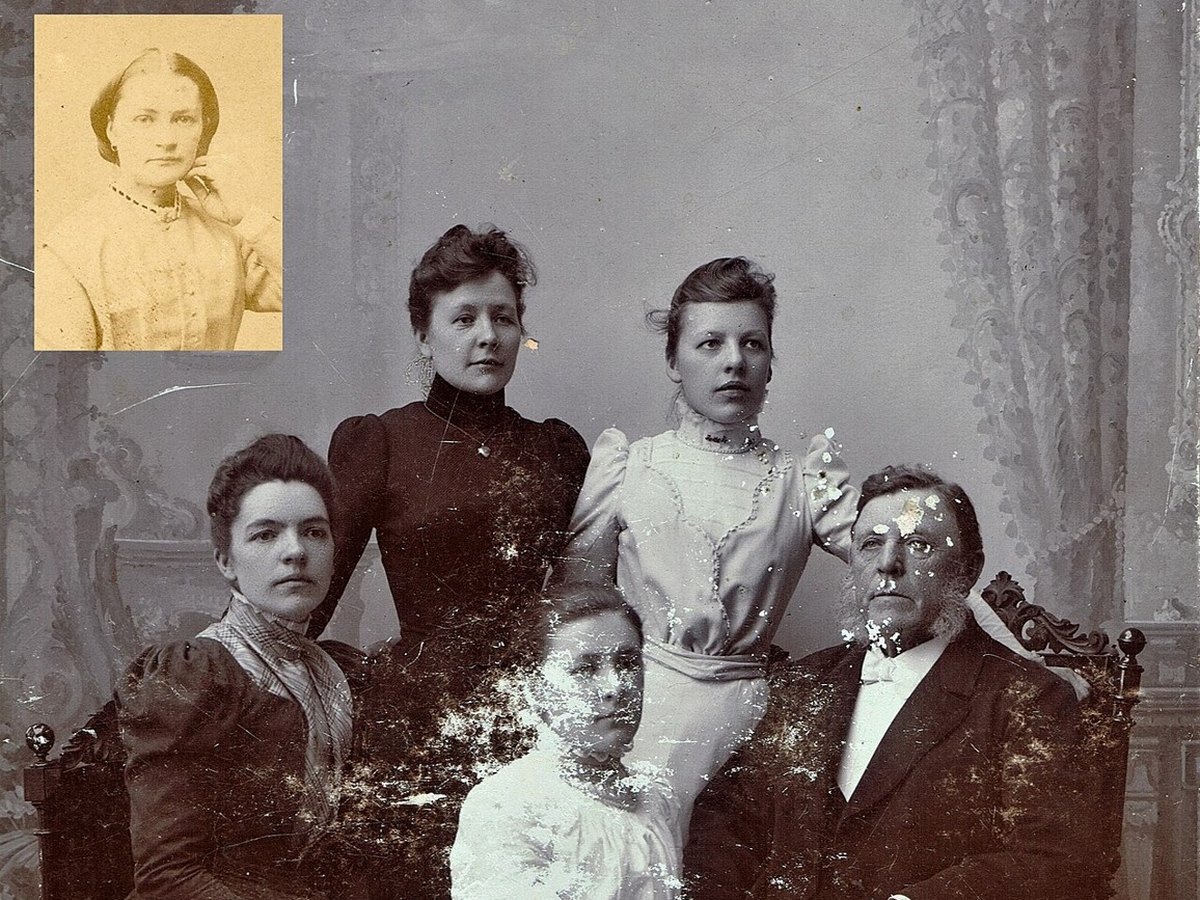
A real sepia family print. Emulsion loss covers the front girl's face and flecks the man on the right. His face stayed close to the original. Hers was almost gone, so her face in the result is redrawn, not recovered. The yellow inset print came out neutral.
Step 1
Scan it flat, or photograph it straight on with the flash off. Upload a JPG, PNG or WebP up to 15 MB.
Step 2
There is a single setting and nothing to tune. Seedream 5.0 Flash works through the damage in one pass.
Step 3
Use the before-and-after slider on faces, eyes and any handwriting, then download.
It removes physical damage from a photo you already have: scratches, dust, spots, cracks, folds, stains and fading. Small torn or missing areas are patched so they blend with the paper around them.
The model is Seedream 5.0 Flash with a fixed restoration prompt. It asks the model to keep the same people, faces, clothes, pose and framing, plus any handwriting or printed text on the print.
Black-and-white and sepia photos stay black-and-white or sepia. Nothing is colorized.
If you want color afterwards, or any other change, take the restored file to the image to image AI tool and describe it, for example: "add natural color, keep every face exactly the same".
Scratches and dust, folds and creases, torn corners, mold and water marks, flaking glass-plate negatives and album scans. Each card below is an untouched result.
The aim is to undo what time did to the print, not to change who is in it.
01
Thin lines, specks and surface cracks across portraits and group shots are the main target.
02
Creases are smoothed out and small gaps are filled from nearby detail. The fill is a guess, so check it.
03
Black-and-white and sepia prints come back in the same palette.
04
Free restores download as JPGs up to 2048 px with no watermark. Credit runs are not downsized. Pro uses the same model at the same price.
Every after image is an untouched result. The first three prints had damage added to a clean public-domain scan; the last two were already damaged. Each card notes what changed.
Fine scratches and dust, including one line across the face, were added to a public-domain portrait. All of it came off. The face held; the skin came out a touch smoother.
A sepia print with a fold and one corner blanked to white. The fold disappeared and the missing piece of hat brim was drawn back in. That brim is invented.
Stains added across a public-domain group scan were removed, and the small faces stayed close to the original. Check every face on your own photo.
A real early-1900s glass plate with peeling emulsion. The flaking was cleared, the face and the handwritten caption were left as they were, and the dark scanner border was cropped off.
A real sepia family photo. Emulsion loss hides most of the front girl's face and spots the man on the right. His face stayed close to the original; hers had too little left, so it was redrawn rather than recovered. The yellowed inset photo came out neutral.
A better scan gives the model more to work with. These are tips, not guarantees.
Take the print out of the album if you can. A curved page leaves a shadow along the spine.
Glass adds glare and reflections that the model may treat as part of the photo.
Keep the phone parallel to the print, switch the flash off, and light the print from the side.
Fix the damage first, then add color or other edits on the image to image AI tool. Editing a scratched print bakes the scratches in.
If you're happy with the result, it's ready to save. If you also want to upscale, extend the edges, or refine other details, you can continue with:
Generate & restore
2Restyle
3