
Placeholder
Products and still objects
Boxes, logos, and tabletop shots. Edges stay edges.
No account required
Paint over anything you don't want in a photo. The AI erases it and rebuilds the background behind it, and the rest of the picture is left as it was.
Tabletop clutter and extras. Placeholder scenes until real fills land.
Placeholder stills · we’ll swap these for real model results later
Boxes, logos, and tabletop shots. Edges stay edges.
Indoor light, phone noise, casual stills — the same photo, less mush.
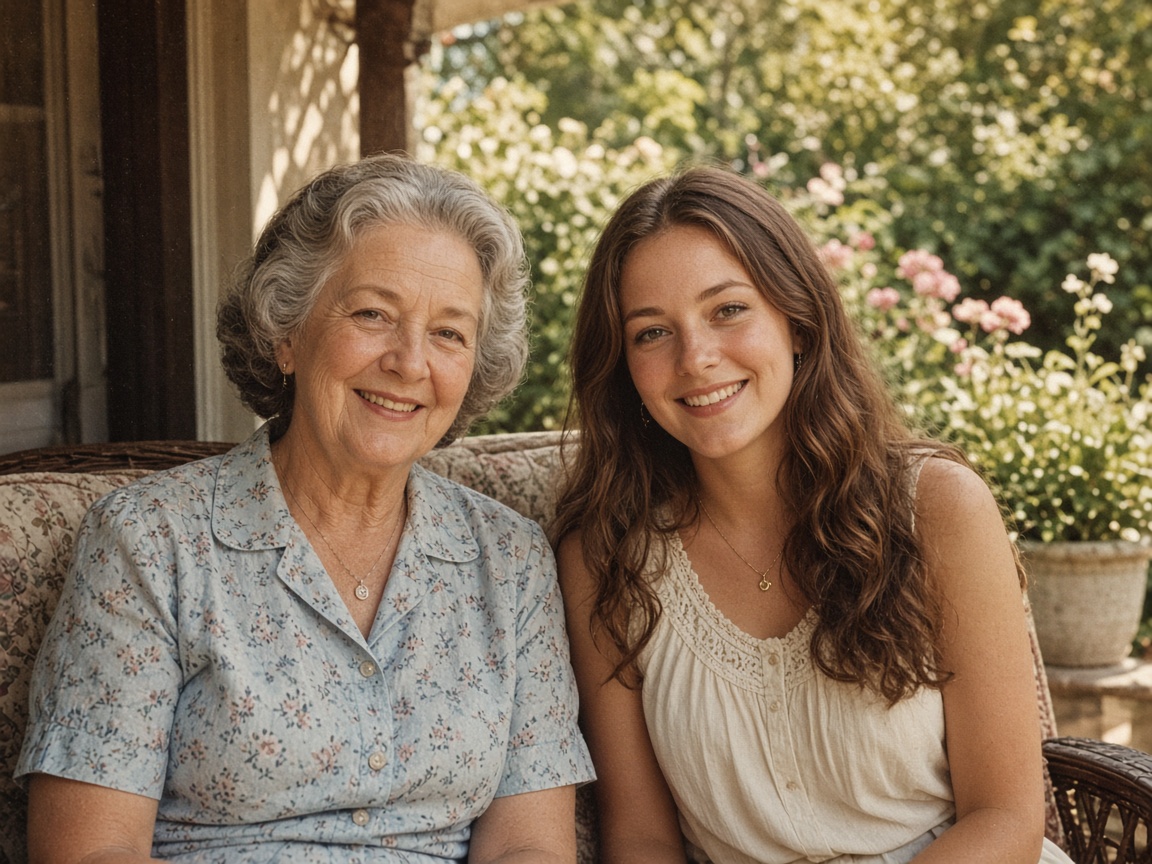
Skin and edges look cleaner. We don’t invent a new person.

Letters stay the letters you already have. Nothing is rewritten.
Step 1
JPG, PNG or WebP, up to 15 MB.
Step 2
Set the brush size, then cover the object with a little margin around it. Use Undo or Clear if you overshoot.
Step 3
Each erase costs 6 credits. Compare the result with the slider, then download it.
You mark what should go, and fal's object-removal model fills that area with background that fits the light, color and texture around it.
Only the brushed area changes. After the model runs, every pixel you didn't paint is copied back from your original, so faces, text and products elsewhere in the photo stay as they were.
It works best on things with a readable background behind them: a trash can on a sidewalk, power lines across the sky, a stranger on a beach, a sticker on a wall, clutter on a table.
Want to swap the object for something else instead of erasing it? Describe the change on the image to image AI tool, for example: "replace the red car with a bicycle, keep everything else the same".
Tourists and passers-by, trash cans and road signs, power lines, stray cables, stickers and stains, and clutter in product or room photos.
Built for one job: make the thing you marked disappear.
01
Paint as roughly or as carefully as the shot needs.
02
Everything outside your mask is restored from the original after the model runs.
03
The fill follows nearby texture and light: sky, grass, pavement, walls, fabric.
04
Every removal is paid with credits, so nothing is stamped on the download.
How you brush matters more than anything else.
Brush a little past the object's edge and over its shadow. Leftover outlines and shadows are the most common giveaway.
For several objects far apart, erase them in separate runs. Smaller holes are easier to fill convincingly.
The larger the area, the more the model has to invent. Check straight lines like railings, tiles and horizons.
To put something new in the gap, describe it on the image to image AI tool.
If you're happy with the result, it's ready to save. If you also want to upscale, extend the edges, or refine other details, you can continue with:
Generate & restore
2Restyle
3